Introduction
The standout feature of the IONODES PERCEPT body camera is its advanced live networking and remote access functionality, enabled by its integrated Wi-Fi and 4G/LTE connectivity. This empowers users with real-time tracking and live streaming capabilities during operation. Furthermore, its extensive ONVIF compatibility, supporting profiles G, S, and T, opens opportunities for integration with a wide range of video management systems (VMS). These VMS options can include both on-premises solutions like Milestone XProtect® or Genetec Security Center™ and cloud-based systems by leveraging the IONODES PERCEPT Cloud solution, all while emphasizing the robust LTE connection.
Each Percept body camera is delivered with a pre-installed SIM card ready to use once you acquire a subscription plan. Contact your IONODES representative to activate a data plan. It can also connect to cellular networks with a user-supplied SIM card.
This guide will help you connect with the LTE network. It assumes the PERCEPT Body Camera’s initial setup has been performed, and the user can connect to its web management interface as per the Quick Start Guide.
LTE Configuration
Login to the web management interface and navigate to the “Configuration” page, “Network” tab, “Cellular” section. In the “Network” sub tab, ensure the “Enabled” box is checked.
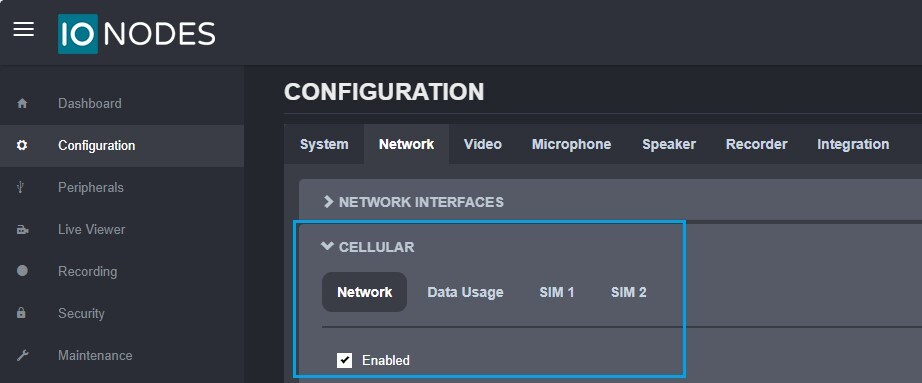
Pre-installed IONODES SIM card
In the “SIM 1” sub tab, ensure “Assume IONODES eUICC SIM” is checked. Save if the web interface prompts for it in a bottom-right corner pop-up. This automatically configures all required Access Point Name (APN) settings. A prompt to refresh the web page may appear in the bottom-right corner. Click on the “Refresh” button to update the cellular data state.
User-supplied SIM card
Refer to the PERCEPT Body Camera SIM card replacement guide to install a user-supplied SIM card. The PERCEPT Body Camera has dual SIM card slots. SIM 2 slot is only accessible during manufacturing. By following the guide, your SIM card will be in SIM 1 slot. The next step is to create a new Access Point Name (APN) for your cellular network.
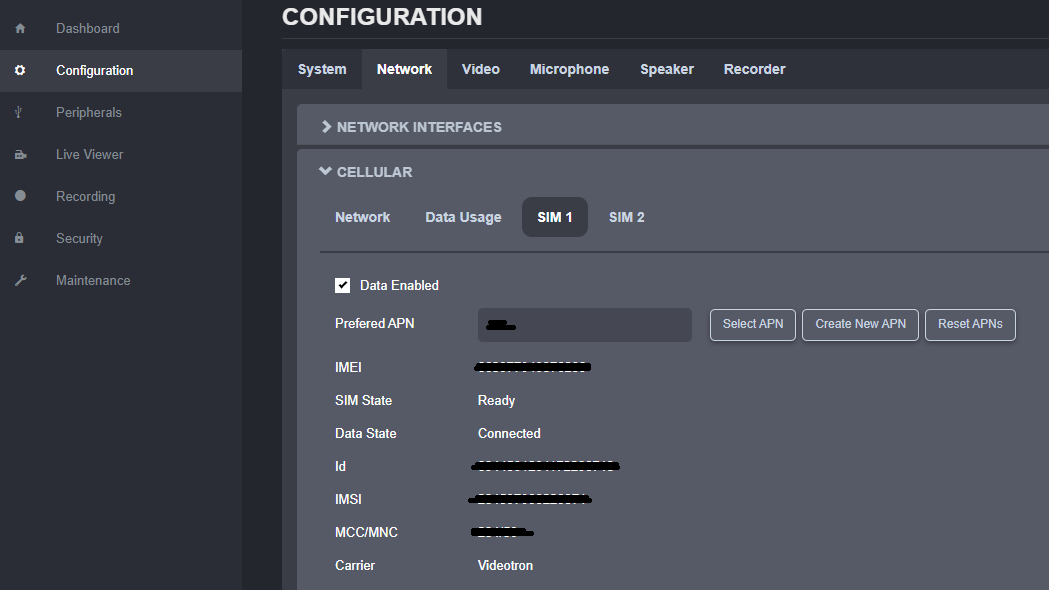
To configure a new APN, click on the Create New APN button, shown in figure 2 above. A new window will pop up where you can input provider settings, as shown in figure 3 below.
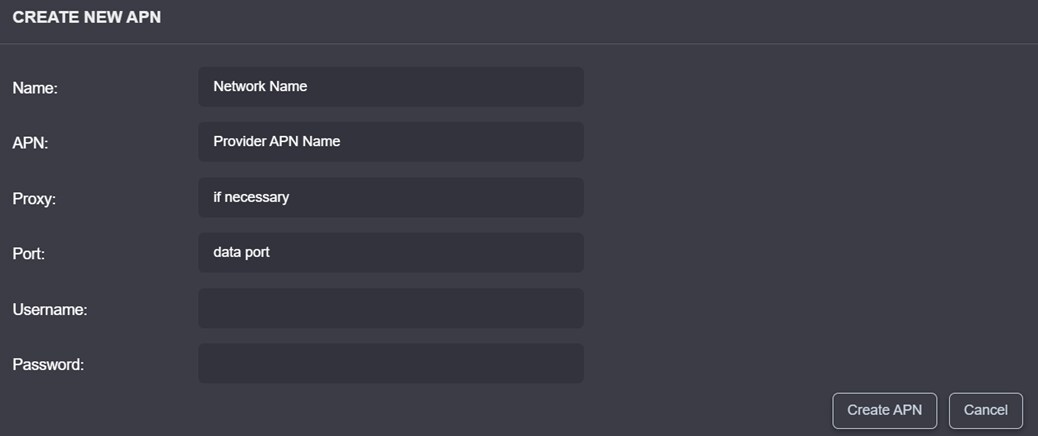
“Name” is a user-defined friendly name for this APN setting. Users can enter any name they see fit in this field. Input APN details from the SIM provider then click on the “Create APN’ button in the bottom-right corner. The newly created APN will be automatically selected. Additional cellular network information will be initialized, and a prompt to refresh the web page will appear. Click on the “Refresh” button to update cellular data state.
Mobile data usage is blocked by default as depicted below. It is the responsibility of an administrator to specify the type of data that will be allowed over LTE network. This ensures that only the necessary data is transmitted, preventing unintended data usage and associated costs.
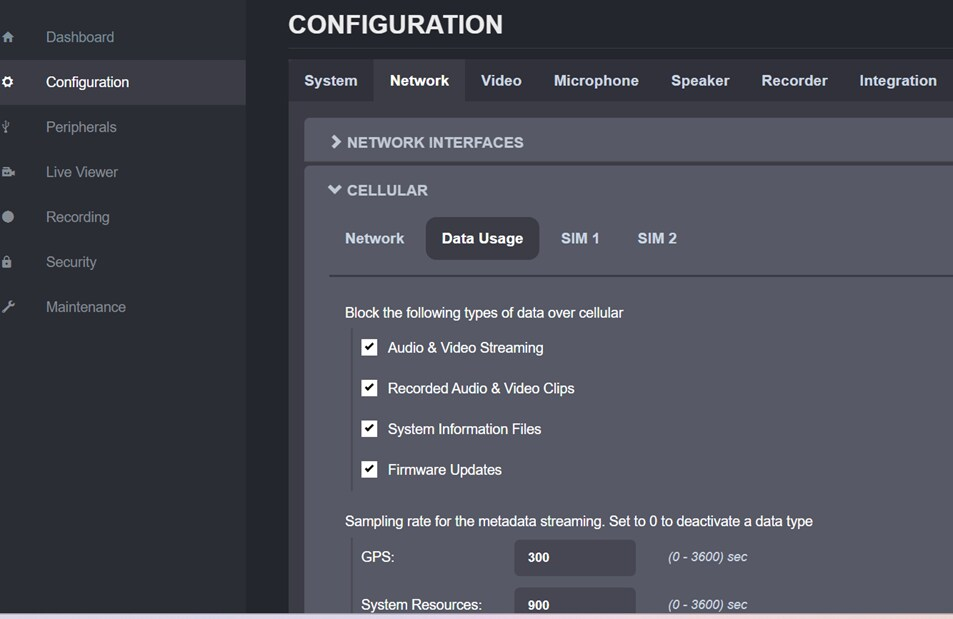
Types of data:
- Audio & Video Streaming: refers to live streaming,
- Recorded Audio & Video Clips: includes download of recording files from the web page’s “Recording” tab, and playback/edge transfer of recordings to a VMS,
- System Information Files: Detailed logs that may be requested by IONODES support personnel,
- Firmware Updates
Troubleshooting
SIM not detected:
- The device needs to be rebooted when a new SIM is inserted and configured. If you inserted a new SIM without rebooting the device, reboot it.
- Make sure the SIM is correctly inserted in the device.
- Make sure the SIM is not faulty.
Carrier connection issue:
- Carrier connection issue can be generated by a few causes:
- The SIM card is not activated.
- The provider of the SIM card does not have roaming agreements with the carriers detected by the device.
- The device is out of range of any LTE network.
- There is an issue with the device LTE antennas.
- The “Emergency calls only” message means that a connection to an LTE network was possible, restricting the possibilities to the first 2 causes.
Data state disconnected:
- The “Disconnected” state of the data can be generated by a few causes:
- The device configuration as the data disabled for that SIM. Make sure the “Data Enabled” box is check in the “SIM 1” sub section.
- The APN is not configured correctly. To reinitialize the APNs, click on the “Reset APNs” button and reboot the device. After boot, if the APN is not supported natively by the device, re-enter APN settings.
- The provider might have disabled data because of excessive use. Check with your provider.