How to update the firmware on IONODES products
Overview
Firmware updates ensure your IONODES devices operate with the latest features, improvements, and security enhancements.
IONODES supports two firmware update methods:
- ⭐ PERCEPT Cloud (recommended)
- Manual firmware update via the IONODES website
This article explains both procedures step by step.
Method 1: Update Firmware Using PERCEPT Cloud ⭐
PERCEPT Cloud provides a centralized and guided update process and automatically notifies users when new firmware is available.
Prerequisites
- Device enrolled in PERCEPT Cloud
- Network connectivity
Steps
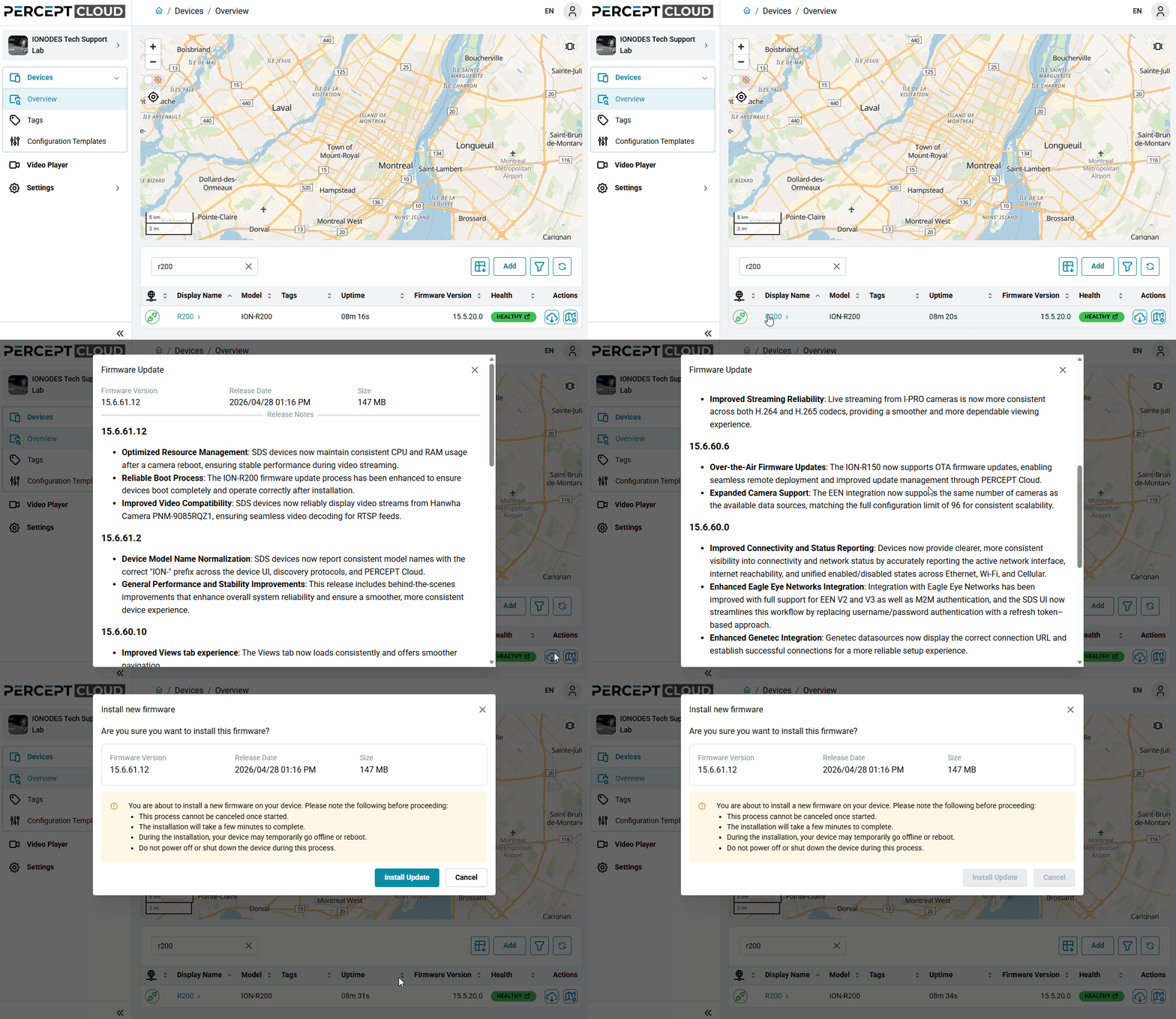
- Log in to PERCEPT Cloud (https://perceptcloud.io/)
- Select your IONODES device from the device list
(for example, ION‑R200) -
🔔 If a new firmware is available, a Firmware Update icon is displayed next to the device
→ Click the icon to review and start the update process
Notes
- Firmware availability is detected automatically.
- Updates can be performed remotely.
- The correct firmware is always proposed for the selected device.
Method 2: Manual Firmware Update (Classic Method)
Use this method when the device is not connected to PERCEPT Cloud or when cloud access is not permitted.
Prerequisites
- Access to the device’s local web interface
- Ability to download files from the IONODES website
Steps
- Go to the IONODES website (https://www.ionodes.com/)
- Open the Products section (https://www.ionodes.com/products/)
- Select the appropriate Product Family (e.g., Secure Display Stations, IP Video Encoders, PERCEPT devices)
Scroll down the page to locate your specific product model
- All models for the selected product family are displayed on the same page
- Download the latest firmware from the product’s Downloads section

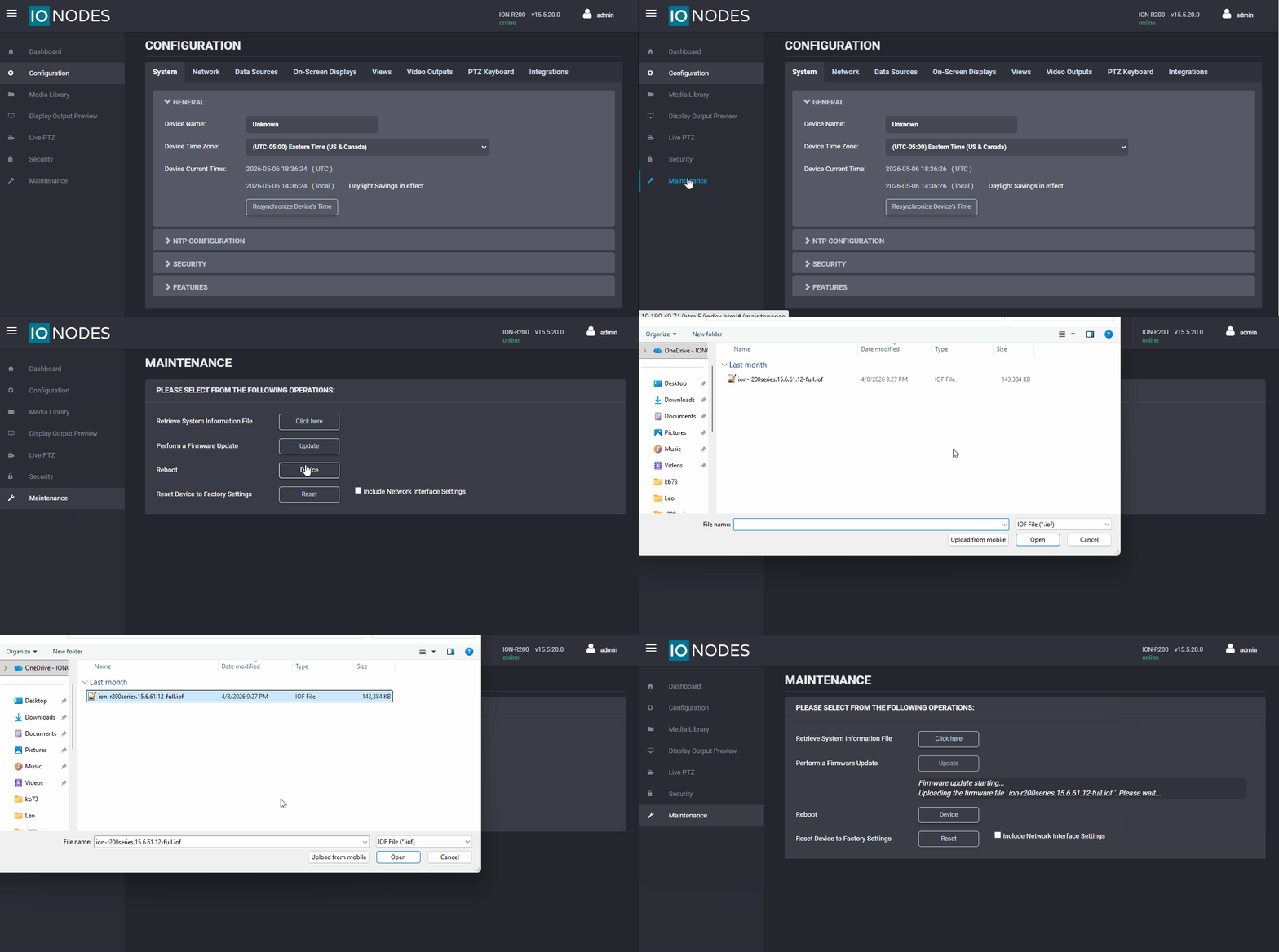
- Log in to the device’s local web interface
- Upload and install the firmware following the device instructions