How to set up an ONVIF camera video stream on the Secure Display Station
Overview
Most professional IP cameras on the market are ONVIF-conformant. With support for ONVIF discovery and profiles S and T, the Secure Display Station offers a convenient way to quickly setup video streams, even for first-time users.
Prerequisites
- Access to the Secure Display Station web interface (USB mouse/keyboard or network device)
- ONVIF user credentials for the cameras
- Configured video settings (framerate, codec, bitrate, ...) on each camera
Steps
1. Verify Network Settings
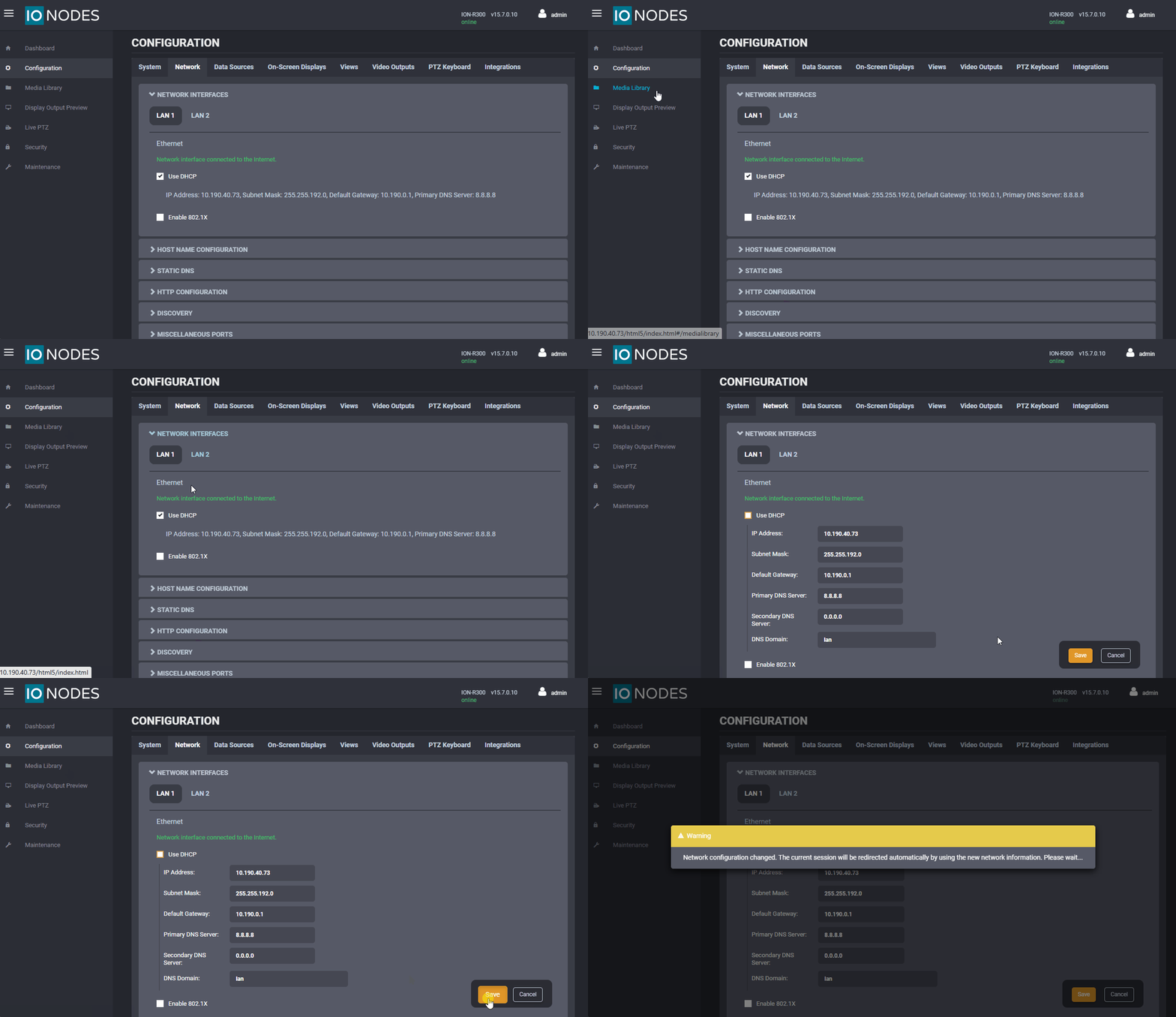
- Log in to your Secure Display Station
- Go to Configuration → Network
- Ensure the device can reach cameras via HTTP and RTSP
- DHCP is enabled by default
- If needed, disable DHCP to configure a static IP
2. Add Cameras (Data Sources)
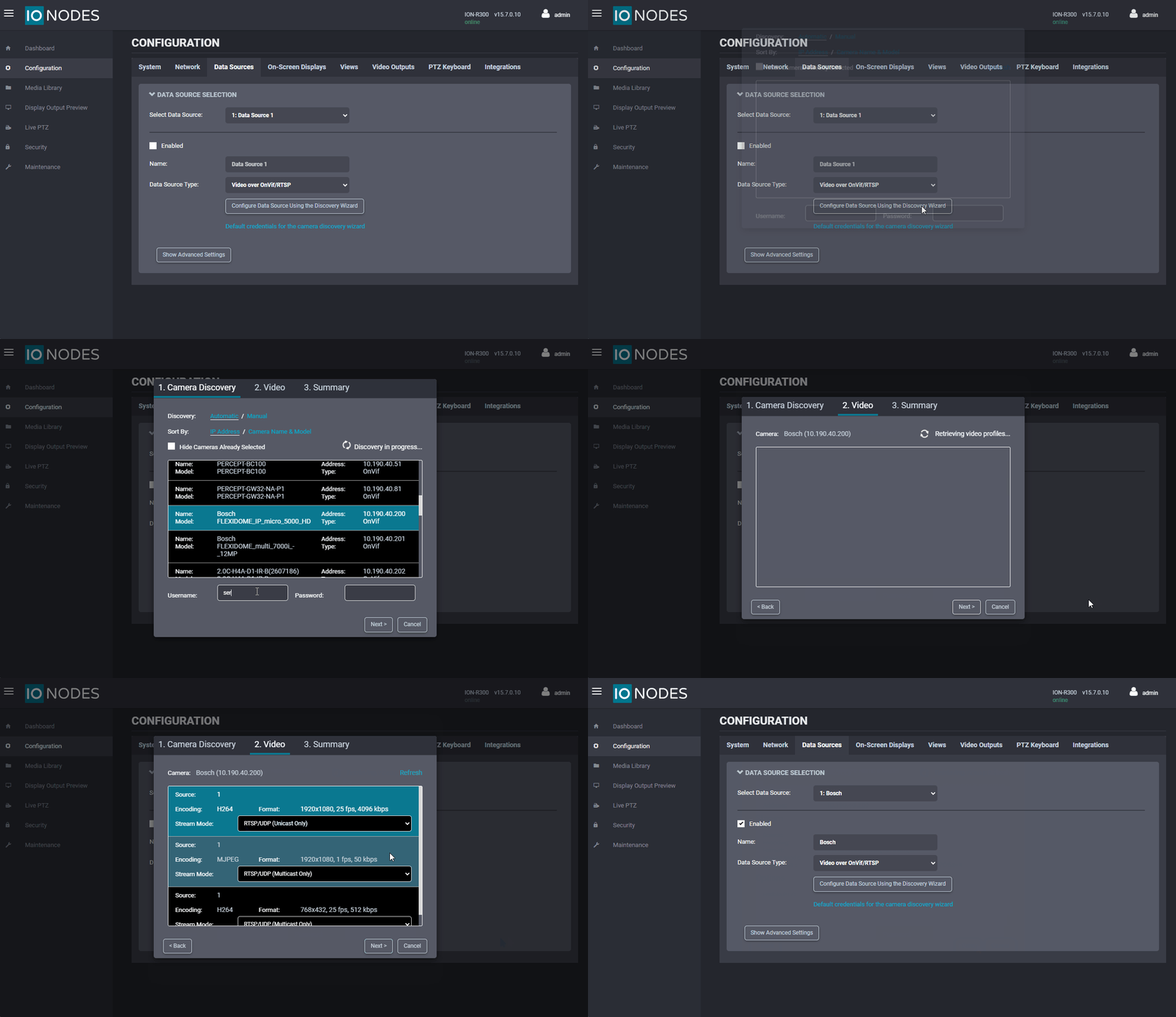
- Go to Configuration → Data Sources
- Select a Data Source
- Confirm type is Video over ONVIF/RTSP
- Click the Discovery Wizard
- Select your camera from the list
- Enter ONVIF credentials and click Next
- Choose a video profile
- Set transport mode (Unicast Only is recommended unless multicast is required)
- Click Done
- Repeat for each camera (use a different Data Source each time)
3. Configure Views
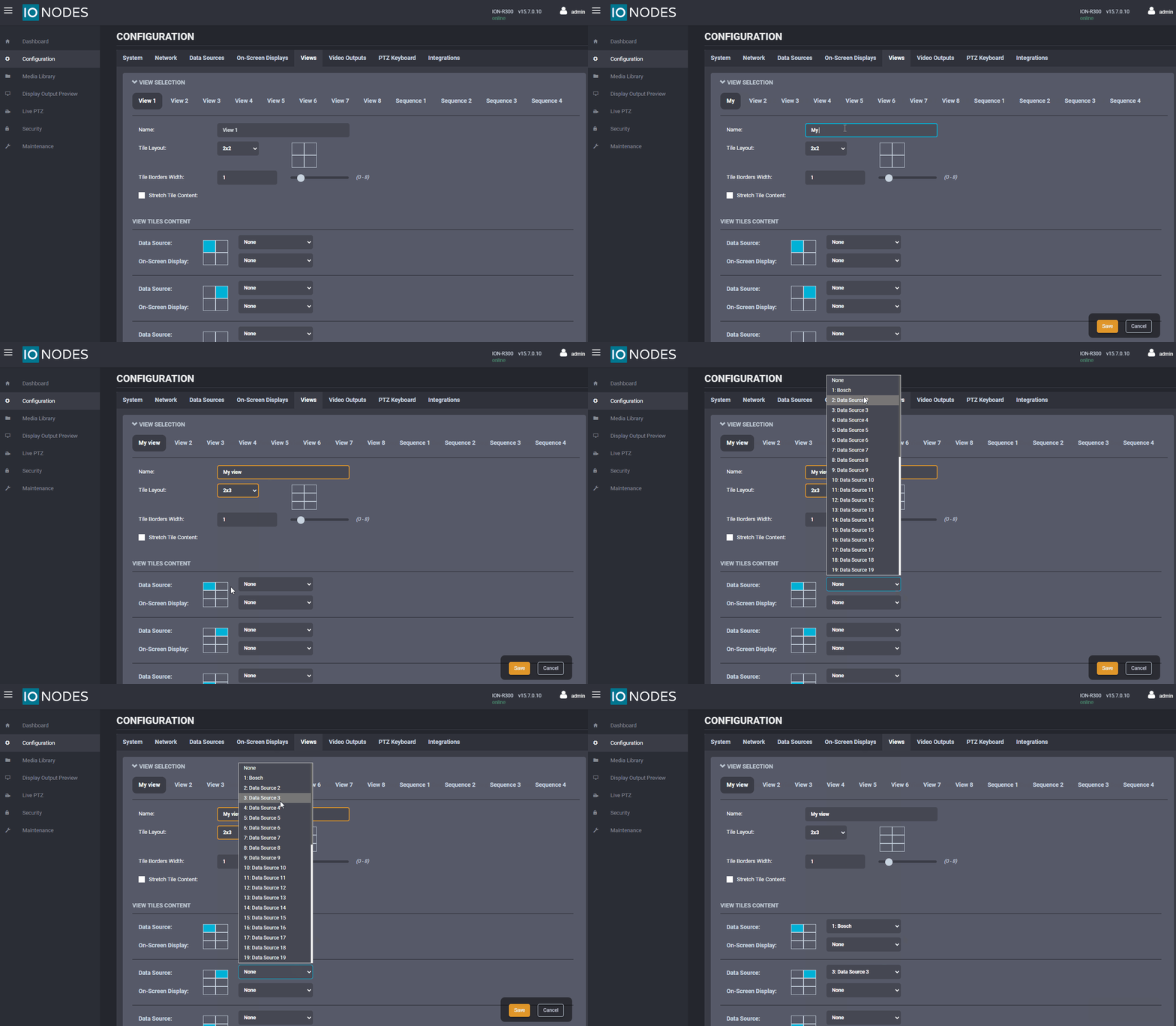
- Go to Configuration → Views
- Select a view (View 1 by default), and optionally edit its name
- Choose a Tile Layout
- Assign a Data Source to each tile
- Repeat to create additional views (up to 8)
4. Assign Views to Outputs
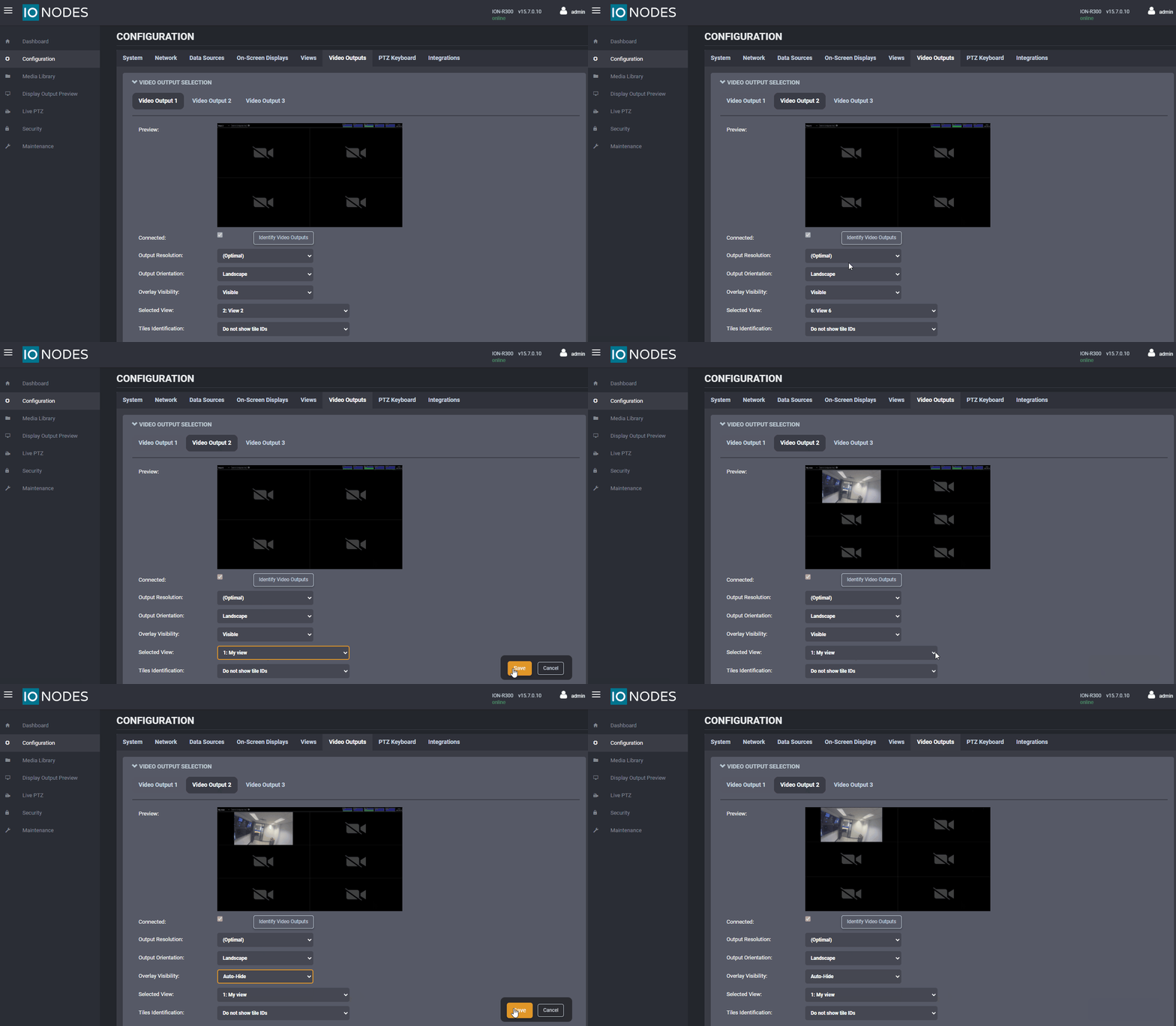
- Go to Configuration → Video Outputs
- Select a video output (if applicable)
- Assign a view
- Repeat for all output
5. Finalize Display
- Confirm system resources (CPU, GPU, Memory) are within limits
- Set Overlay Visibility → Auto-Hide to remove resource graphs from display