How to use the export and import configuration routine with the IonConfigTool
In this short HowTo article we’re going to show you how to export and import a configuration on just about any IONODES product. This can save you a lot of time compared to a manual configuration, especially if you have a large deployment in the field with multiple units of the same product. Having a backup of the configuration is also useful in the event of accidental modifications by end-users, where you need to quickly restore settings to a proven & stable environment.
In order to get started, the only thing you need is our proprietary tool, called the IonConfigTool. Please make sure to download the latest version directly from our main IONODES website by going to the Resources > Tools and Documentation section: Tools and Documentation - IONODES
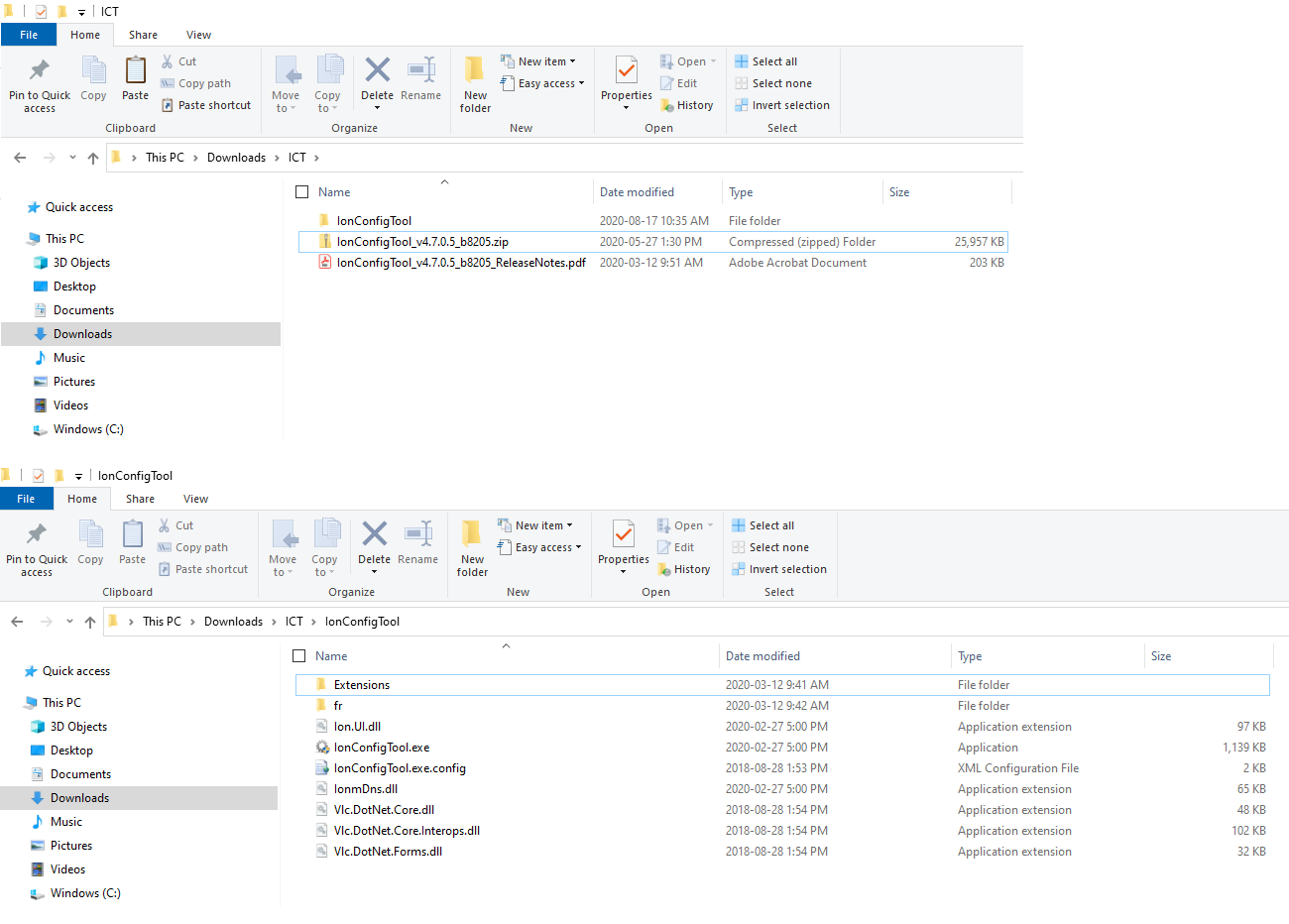
Once the compressed zip file has been downloaded, you’ll just need to unzip it and run the IonConfigTool.exe file. There is nothing to install or configure.
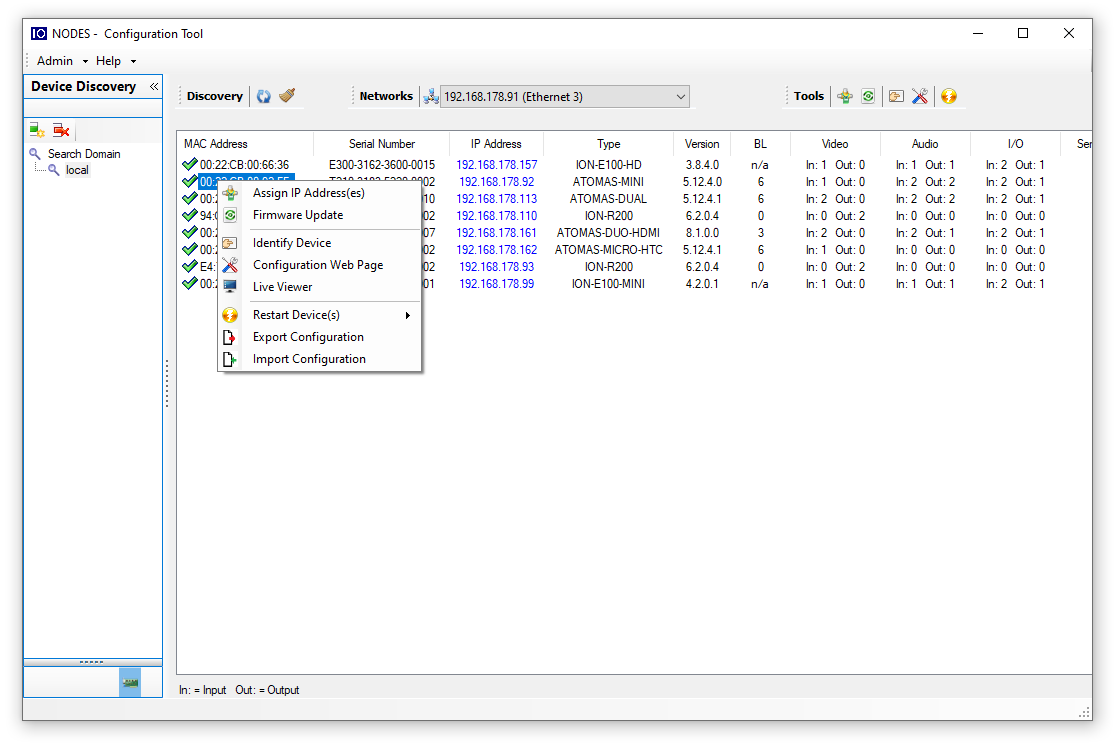
After the tool is started, please make sure that you’re on the right network, where all of your IONODES devices are connected, by selecting the proper network interface at the top. In a couple of seconds all of your IONODES products will be automatically discovered via the Bonjour protocol. All that remains is to right-click on a unit, select “Export Configuration” and then save your XML configuration file to your desired location.
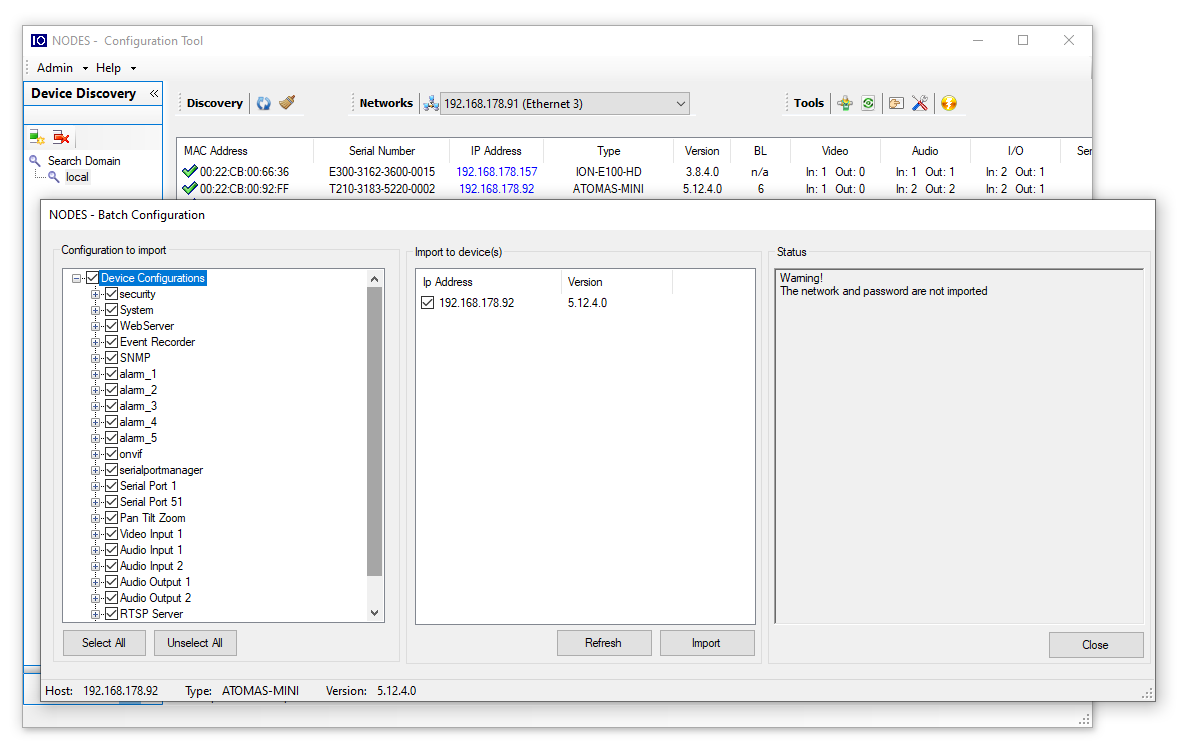
For importing a previously saved configuration, simply select in the list of devices all of the target units (this can be one single unit or multiple units of the same product), then right-click and choose “Import Configuration”. A batch configuration window will appear, allowing you to fine-tune the exact configuration sections that should be imported, as well as the list of devices to import to. Hitting the “Import” button will begin the process and a confirmation that the operation was successful will be displayed in the Status panel.
The versatility of the IonConfigTool allows our customers to easily import & export the configurations of their IONODES products.
Here is a short video tutorial: